Browser Connector
Use Meridian from browser-based AI clients without giving up the shared session memory, sprint board, or HITL queue.
- Claude can connect directly to hosted Meridian with a remote MCP connector.
- ChatGPT now surfaces these integrations under Settings > Apps.
- Self-hosted localhost setups still need a bridge or a public URL.
Hosted browser clients
Hosted Meridian is the simplest path for both Claude and ChatGPT:
- Sign in to usemeridian.us.
- Add Meridian with the public MCP URL:
https://usemeridian.us/mcp - Approve the OAuth popup.
- Start using Meridian tools in chat.
Which Meridian account does the browser connector use?
The browser MCP connector uses whichever Meridian account is currently logged in at usemeridian.us in that browser tab. If you want to connect as a different account (e.g. to demo from a guest account):
- Open usemeridian.us/auth/logout to sign out.
- Sign in as the desired account.
- Reconnect the MCP connector in Claude or ChatGPT.
You can also click Switch Meridian account in the dashboard Settings tab to sign out and return to the login page in one step.
Claude
In Claude, go to Customize > Connectors (or Settings > Connectors in some layouts), choose Add custom connector, then paste:
- Name:
Meridian - URL:
https://usemeridian.us/mcp
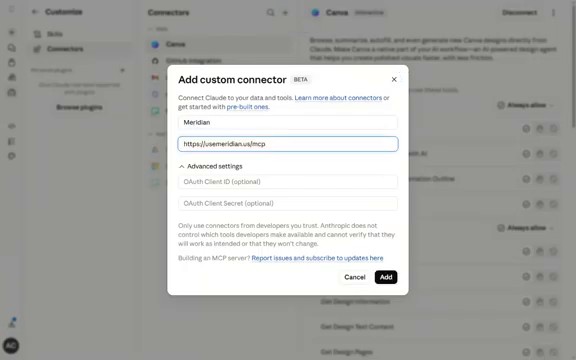 Claude custom connector modal with the hosted Meridian MCP URL prefilled.
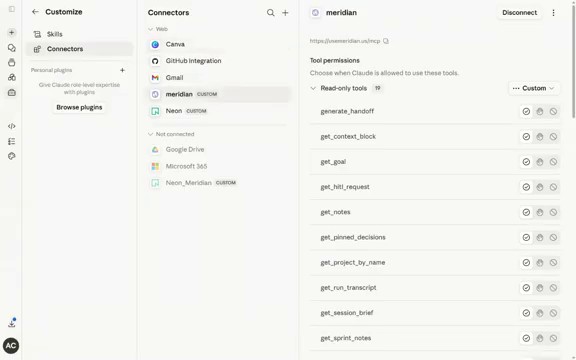 Claude showing Meridian connected and exposing the shared-session toolset.
Claude video walkthrough
ChatGPT
Alpha: Developer Mode required
ChatGPT support currently requires Developer Mode and some tools are blocked by ChatGPT's safety filter. Claude works with no extra steps. Official ChatGPT app catalog submission pending — this limitation goes away once approved.
Tested models and compatibility
Tested with ChatGPT o3 and ChatGPT 5.4. All Meridian tools are ChatGPT-compatible: no outputSchema fields, all tool names are 64 characters or fewer.
In ChatGPT, open Settings > Apps, choose New App, then add Meridian's public MCP endpoint:
- Name:
Meridian - Server URL:
https://usemeridian.us/mcp
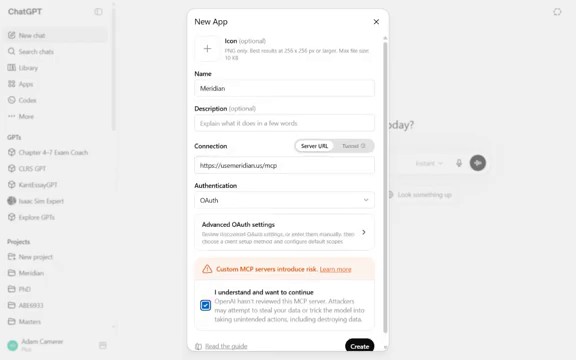 ChatGPT's "New App" flow pointed at the hosted Meridian MCP endpoint.
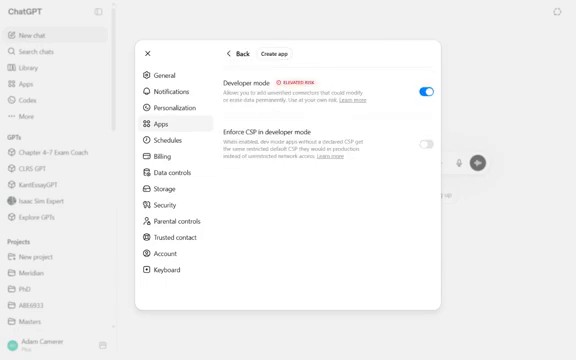 ChatGPT with Meridian connected under Settings > Apps.
ChatGPT video walkthrough
Current ChatGPT naming
OpenAI now calls these integrations Apps. Older docs and screenshots may
still say "connectors" or "custom connectors", but the Meridian MCP URL is
still the same: https://usemeridian.us/mcp.
ChatGPT Developer Mode
If the standard Settings > Apps flow does not yet expose custom MCP servers for your account, enable Developer Mode and add Meridian by hand:
- Settings → Connectors → Advanced → Developer Mode
- Paste the server URL
https://usemeridian.us/mcp - Add a Bearer token from usemeridian.us/settings
Official catalog listing is pending OpenAI review — Developer Mode is the supported path until Meridian appears in the public App catalog.
Claude Desktop
Connect Meridian to Claude Desktop via MCP configuration:
- Open Claude Desktop settings.
- Click Developer, then Edit Config.
- Add the Meridian server block to your
mcpServers. - Restart Claude Desktop.
Claude Desktop video walkthrough
Video walkthrough coming soon.
Codex / Windsurf
Connect Meridian to Codex or Windsurf via MCP server settings:
- Open Codex Settings (or Windsurf Settings).
- Click MCP Servers, then Add Server.
- Choose Streamable HTTP.
- Name it
Meridianand paste the URL:https://usemeridian.us/mcp.
Codex / Windsurf video walkthrough
Video walkthrough coming soon.
Self-hosted local browser clients
Hosted browser clients talk to a public MCP endpoint. If you are running
Meridian on localhost, you have two paths:
- Claude + Chrome/Chromium: use a local SSE bridge.
- Claude or ChatGPT with remote MCP: expose Meridian on a public HTTPS URL
and use
/mcp.
Self-hosted localhost (requires bridge or public URL)
Self-hosted Meridian on localhost has two options: **Option 1: Local SSE bridge** (for Chrome/Chromium users): 1. Start Meridian locally: 2. Install [dnakov/claude-mcp](https://github.com/dnakov/claude-mcp) browser bridge. 3. Add your local SSE endpoint: - **Name:** `Meridian (local)` - **URL:** `http://localhost:7878/mcp/sse` **Option 2: Public HTTPS URL** (recommended for all clients): Expose Meridian on HTTPS (e.g., via Cloudflare Tunnel or ngrok) and use the remote MCP endpoint without any bridge: - **Name:** `Meridian` - **URL:** `https://your-public-domain/mcp`Public URL required for remote MCP
Claude remote custom connectors and ChatGPT custom apps do not connect
directly to http://localhost. If you want browser clients to reach your
self-hosted server without a local bridge, expose Meridian on HTTPS first
and use https://your-host/mcp.
Local file reading in planning chat (optional)
Expose your local files to planning chat. A bare mcp-proxy tunnel does not work
with claude.ai: its connector validation probes the endpoint with GET /mcp and a CORS
OPTIONS preflight before the MCP handshake, and mcp-proxy answers those non-POST
requests with 400 — which claude.ai reads as "couldn't connect," even though POST
works fine. Front mcp-proxy with the bundled CORS shim
(scripts/mcp_cors_proxy.py) so those probes get the 200/204 + Access-Control-*
headers claude.ai expects (the same ones Meridian's own /mcp returns).
1. Run mcp-proxy locally — note: NO --tunnel (the shim is the public face):
Windows:
npx mcp-proxy --port 8808 --shell -- cmd /c npx -y @modelcontextprotocol/server-filesystem "C:\path\to\repo"
2. Run the CORS shim in front of it:
3. Tunnel the shim's port (8809) and add it to claude.ai:
Copy the printedhttps://… URL → add <url>/mcp as a connector in claude.ai.
Read-only. Requires Node.js + Python 3. URL changes on restart.
Permanent tunnel — Standard tier
The Standard tier includes a permanent tunnel URL that never changes — add it to claude.ai once and it works forever. Filesystem access via the tunnel is the core planning workflow (it lets the planner see gitignored strategy files), so it ships in Standard rather than being gated behind a higher tier.
Troubleshooting
"No tools loaded" or the connector hangs
- Make sure Meridian is running.
- For hosted, reconnect and confirm the URL is
https://usemeridian.us/mcp. - For self-hosted localhost bridges, confirm the extension points to
http://localhost:7878/mcp/sse. - For public self-hosted URLs, confirm
https://your-host/mcpis reachable from outside your network.
Auth popup does not close
- Finish the Meridian OAuth flow, then return to Claude or ChatGPT.
- If it still hangs, disconnect Meridian and add it again.
Tools appear but calls fail
- For hosted, regenerate your API token if your account was recently reset.
- For self-hosted public URLs, verify your reverse proxy forwards
/mcpcleanly. - For localhost bridges, check the extension logs for 401 / 403 errors.
What you get
Once connected, browser clients can call the same core Meridian tools as your desktop agent:
| Tool | What it does |
|---|---|
start_session |
Load full project context in one call |
log_task |
Log what the session just did |
generate_handoff |
Create a resumable context file |
request_hitl |
Surface a blocking question to the dashboard |
get_sprint_items |
See the sprint board |
pin_decision |
Record an architectural or product decision |